How to Find Your MacBook's Model, A-Number and Year (Before You Buy a Part)
Order the part only after you know the exact model.
Most wrong-part orders start with a half-right name. Here is how to read your MacBook’s model, year and A-number in two minutes, and what each number means.
The short answer
- Fastest way: Apple menu, then About This Mac. Apple calls it the easiest way.
- For the model identifier: hold Option, open the Apple menu, choose System Information, then Hardware.
- The A-number is printed on the Mac and used in our listings. Apple’s identify pages list identifiers and part numbers, not A-numbers, so match them against the listing.
- Same name, different Mac: the 2019 13-inch Pro has two-port and four-port versions.
Steps and wording come from three Apple Support pages (find your Mac model name and serial number, identify your MacBook Pro model, identify your MacBook Air model), which we opened on 31 Oct 2026. Apple’s pages do not print A-numbers, so the A-number column is matched from our own listings and guides. We have not yet added our own photos of where the A-number sits on each model. Those are planned.
Why the exact model matters before you order anything
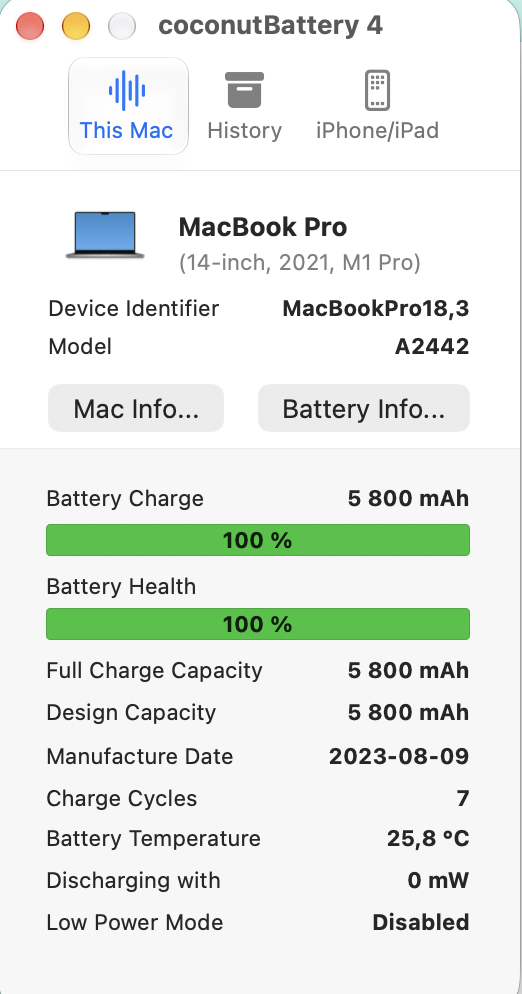
A part that fits one MacBook often does not fit another that looks the same. "MacBook Pro 13-inch 2019" is two different machines: Apple lists a two-port model (MacBookPro15,4) and a four-port model (MacBookPro15,2). Batteries, keyboards and screens are matched to the A-number and the year, so the order starts with knowing both. Our battery grade guide and keyboard grade guide both assume you have done this step.
How do you find your MacBook's model and year?
Apple calls About This Mac "the easiest way". The other routes below are all on Apple's own page for finding the model name and serial number.
| Method | Where to look | What you get | The catch |
|---|---|---|---|
| About This Mac | Apple menu, then About This Mac | Chip or processor, year, serial number | It may not show the model identifier. Use System Information for that |
| System Information | Hold Option, click the Apple menu, choose System Information, then Hardware | Model identifier (for example MacBookAir10,1), serial number | Needs the Mac to start |
| Serial number lookup | Enter the serial on Apple’s Check Coverage page | Apple shows the model and your coverage | Apple warns that if the logic board was replaced in a repair, the serial printed on the Mac or its box may no longer be active |
| Printed on the Mac | Usually on the underside, near the regulatory markings, and on the box next to a barcode label | Serial number, and usually the A-number in the small print | Worn or covered by a skin; the box is often missing on a pre-owned Mac |
| Apple Account | account.apple.com, then Devices | Your Mac’s name and serial | Only for a Mac signed in to your Apple Account |
What do the model identifiers mean for the Macs we see most?
Apple's identify pages list the model identifier and part numbers for each year. They do not print the A-number, so we match the two ourselves, using the A-number on the Mac and our own listings. The table below keeps to rows Apple confirms (identifier and year) and adds the A-number from the listings and guides on this site.
| A-number (from our listings) | Mac and year | Apple model identifier |
|---|---|---|
| A2337 | MacBook Air 13-inch, M1, 2020 | MacBookAir10,1 |
| A2179 | MacBook Air 13-inch, Intel, 2020 (Retina) | MacBookAir9,1 |
| A2338 | MacBook Pro 13-inch, M1, 2020 | MacBookPro17,1 |
| A2289 | MacBook Pro 13-inch, two ports, Intel, 2020 | MacBookPro16,3 |
| A2141 | MacBook Pro 16-inch, 2019 | MacBookPro16,1 or 16,4 |
| A1989 / A1990 | MacBook Pro 13-inch four-port (A1989) and 15-inch (A1990), 2018 and 2019 | MacBookPro15,2 (13-inch), MacBookPro15,1 and 15,3 (15-inch) |
| A1706 / A1707 | MacBook Pro 13-inch four-port (A1706) and 15-inch (A1707), 2016 and 2017 | MacBookPro13,2 and 14,2 (13-inch), MacBookPro13,3 and 14,3 (15-inch) |
Rows are matched from our own listings and guides. Apple's pages give the year and identifier but not the A-number, so always check the A-number printed on your own Mac against the part listing before you pay. We did not match the A1466 Air, the A1502 and A1398 Retina Pros here because their battery model changes by year; each has its own guide that sorts it out.
Four mistakes that lead to the wrong part
- Searching by name and year only. The 2019 13-inch Pro exists with two ports and with four ports.
- Trusting the serial on the box after a board swap. Apple says it may no longer be active. Read it from About This Mac instead.
- Mixing up the keyboard layout. A US layout has a rectangular Return key; a UK layout has a tall, 7-shaped Enter key. The keyboard guide shows both from our listings.
- Buying a battery from a similar model. Battery models change by year even when the case looks identical. Use the A-number guides for the A1466, A1502 and A1398.
Once you know the model, what next?
Match the A-number to the part listing and read the year note in the listing. If the Mac is not yet working, use the repair or replace guide to decide whether the part is worth buying at all. If you are buying a pre-owned Mac and not a part, the 15-minute inspection checklist starts with the same About This Mac screen.
Questions we get asked
Is the A-number the same as the model identifier?
No. The A-number (for example A2338) is the model number printed on the Mac and used in our listings. The model identifier (for example MacBookPro17,1) is what System Information shows and what Apple’s identify pages list. We match one to the other in the table above.
Where is the serial number printed?
Apple says it is usually on the underside of the Mac, near the regulatory markings, and may be on the box next to a barcode label. If the logic board was replaced in a repair, the printed serial may no longer be active, so read it from About This Mac.
My Mac will not start. How do I find the model?
Use the underside of the Mac and the box if you have it, enter the serial on Apple’s Check Coverage page, or sign in at account.apple.com if the Mac was signed in to your Apple Account.
Does the same A-number always mean the same battery?
Not always. On the A1502 and A1398 the battery model changes by year. Check the year first, then the listing.
Not sure which part your Mac needs?
Send Aparna a screenshot of About This Mac, or a photo of the underside showing the A-number. We will confirm the model and point you to the matching listing.
Checked 31 Oct 2026. Model rows come from Apple’s identify pages; A-number matches come from our own listings.