


 MacBook Air
 MacBook Pro 13"





How to Replace the Display on a MacBook Pro 13-inch Retina A1502: Step-by-Step Guide
Replacing the A1502 display, step by step.
MacBook Pro 13-inch Retina, Late 2013 to Early 2015. What you need, which models the part fits, how hard it really is, and every step in order, with approximate illustrations to follow along.

The short answer
- Difficulty: Moderate. Time: 30 minutes to 1 hour.
- Fits: A1502 (EMC 2678 for Late 2013 and Mid 2014, EMC 2835 for Early 2015). Our listing is titled for EMC 2678 and 2875, so confirm the EMC on your underside before ordering.
- Parts: from ₹15,500 on our site, with product links at the bottom.
- Chennai? Buy the part on our website and we will fit it for free at our partnered store.
Buy the display on sparesonly.in and get it replaced for free at our partnered store in Chennai. Ask Aparna for free guidance on WhatsApp before you buy, and she will confirm the right part for your Mac.
The step order, screw sizes and tools were compiled and paraphrased from published repair documentation for this model, and screen specifications from Apple tech specs where Apple still publishes them. We have not yet photographed this repair on our own bench, so the drawings are illustrations of the approximate layout, not photos of a real unit. Parts prices and stock come from our listings, read on 31 Oct 2026.
What do you need before you start?
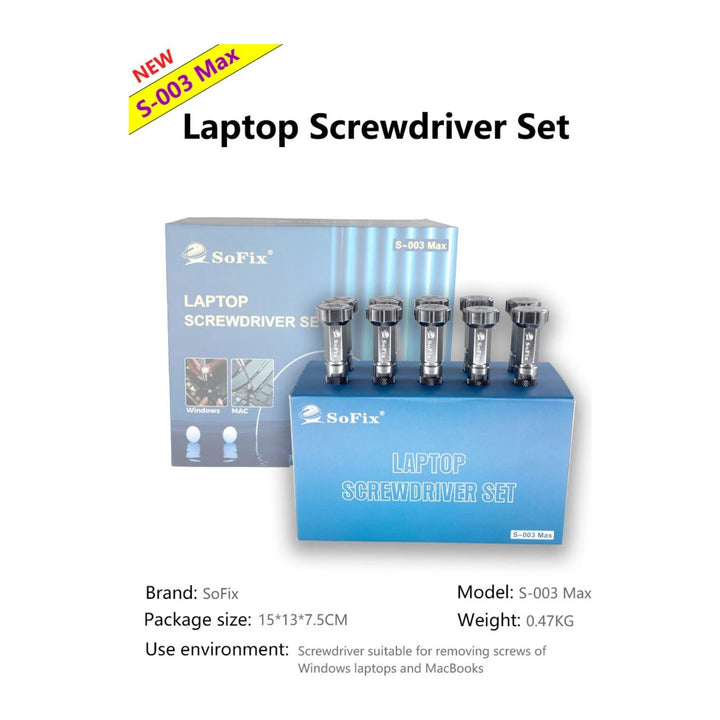
- P5 pentalobe screwdriver
- T5 Torx
- T8 Torx (security bit)
- Spudger
- Tweezers
- Power off and unplug. The published guides have no explicit battery-first step, so disconnect the battery connector before touching any other cable.
- Check the EMC number: a part for a different year can have a delayed backlight.
Display specifications
| Item | Detail |
|---|---|
| Screen | 13.3-inch LED-backlit IPS |
| Resolution | 2560 x 1600, 227 pixels per inch |
| Brightness and colour | 300 nits, standard colour (sRGB) on the Early 2015 model; the Late 2013 page lists no brightness. No True Tone |
| Compatible models | A1502 (EMC 2678 for Late 2013 and Mid 2014, EMC 2835 for Early 2015). Our listing is titled for EMC 2678 and 2875, so confirm the EMC on your underside before ordering. |
| Difficulty and time | Moderate; 30 minutes to 1 hour |
Step by step: replace the A1502 display
Remove the lower case
Remove ten P5 screws, two shorter and eight longer. Separate the case, which is held by two clips near the centre.
Disconnect the battery
Lift the battery connector straight up with a spudger and bend it out of the way. Lift only the connector, never the socket.
Free the antenna and camera cables
Peel the rubber bumper off the fan heat sink to find the camera cable. Pry the three wireless antenna cables off their board; they are sleeve-coded and each must go back to its own socket. Walk the camera cable out of its socket and peel it off the fan housing.
Disconnect the display data cable
Flip up the black tab on the display data cable connector and pull the cable straight out of the logic board. Its socket is fragile.
Remove the hinge brackets and screws
Remove the rubber hinge covers, then two T5 screws on the aluminium brackets, and lift the brackets off with tweezers. Remove the four outer T8 screws, two per side.
Release and lift the display
Open the lid just past 90 degrees and stand the Mac on its end. Remove the remaining T8 screw from the upper bracket and the last one. Rotate the base and the display apart and lift the display away, holding both halves.
Putting it back and testing
- Fully seat the display connector and close its tab.
- Route the antenna cables by sleeve length to the correct sockets.
- Test the display, brightness and camera before you refit the lower case.
While the case is open, you can also replace the battery: see our A1502 battery guide.
On the Macs that have it, True Tone may stop working on some replacement panels, because the colour calibration belongs to the original display. If it matters to you, ask Aparna before ordering which grade keeps it.
Questions we get asked
Can I replace the display myself?
It is rated moderate in the published repair documentation we compiled this from, and takes 30 minutes to 1 hour. The risks are the fragile cables, small screws and, on Touch Bar models, the Touch Bar connector. If you are in Chennai, you can skip the risk: see the box above.
Will True Tone or the colours change?
On a genuine or matching panel they should not. Repair guides warn that True Tone may not work on some replacement displays, and that Apple’s own support site says non-genuine replacement displays may have compromised visual quality. Ask Aparna which grade your listing is.
Which display do I order?
Match the A-number and the EMC on your underside to the compatibility line above. If the listing names several A-numbers, check that yours is one of them. Our model guide shows how to read them.
Is it worth repairing, or should I buy another Mac?
Compare the display price with a pre-owned unit of the same model. Our repair or replace guide does that sum.
Parts and approximate cost
| Product | Approx. cost | Stock when checked |
|---|---|---|
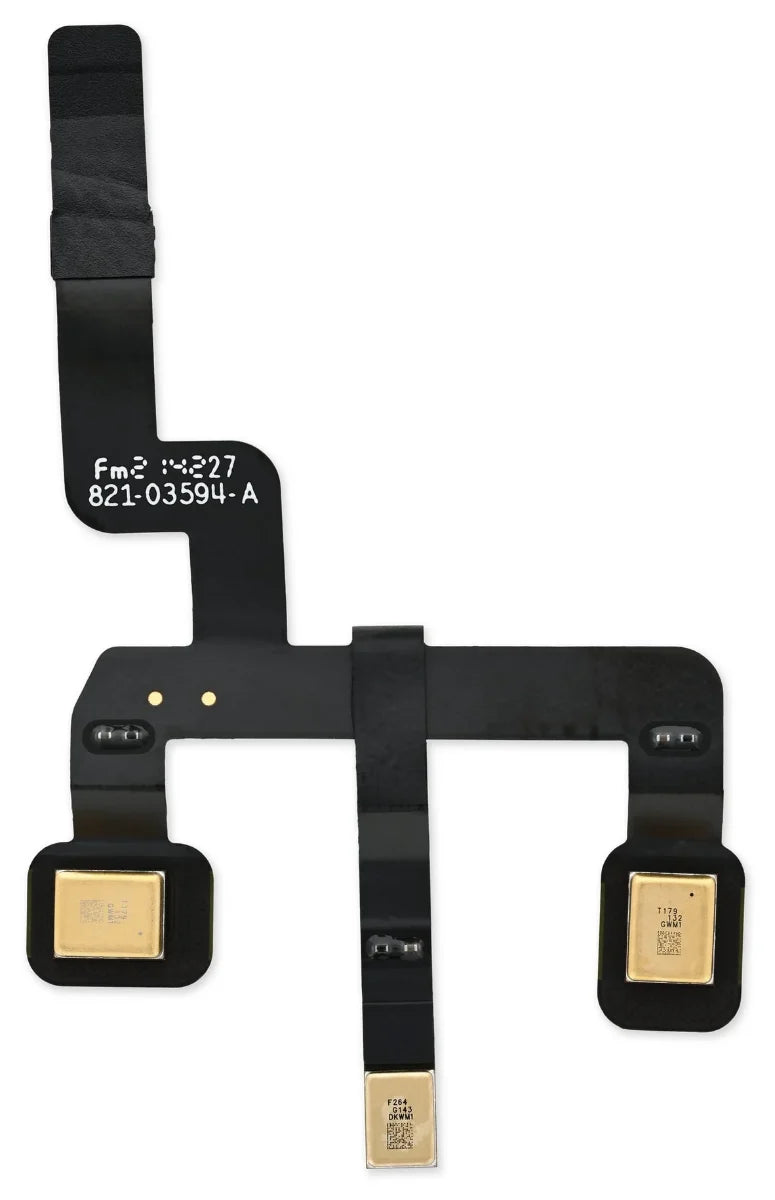
| Display for A1502 MacBook Pro 13 Retina (2013 to 2015) | from ₹15,500 | 0 in stock when checked; ask Aparna |
| Display flex cable for A1398, A1425, A1502 | from ₹1,190 | 2 in stock |
Prices are the lowest listed price on 31 Oct 2026 for parts only, and change. Fitting is free in Chennai only for parts bought on sparesonly.in. Ask Aparna for the total before you order.
Want it fitted, or not sure of the part?
Send Aparna a screenshot of About This Mac or a photo of the underside showing the A-number. In Chennai, buy the part on our website and we will replace it for you at our partnered store for free. Elsewhere in India, she will confirm the part and share these steps with you.
- Apple tech specs for this model (111946)
- Apple tech specs for this model (111959)
- Apple Support: warning about counterfeit parts and non-genuine replacement displays
- Product listings on sparesonly.in, read 31 Oct 2026
Apple, MacBook Air and MacBook Pro are trademarks of Apple Inc. This site is independent and has not been authorised, sponsored or approved by Apple Inc.